
Your laptop sounds like a hairdryer. Chrome has been open for four minutes. You have six tabs. Welcome to the low-end PC struggle.
If your machine has 4GB of RAM or less or if you’re running an aging Intel Celeron, an older AMD APU, or a budget Windows 10 device you’ve been nursing through the years your browser choice matters more than almost any other software decision you’ll make. The wrong pick doesn’t just slow things down. It turns a usable computer into a paperweight.
The good news? In 2026, there are genuinely great options. Let’s sort through them.
Why Your Browser Kills a Low-End PC (And What to Look For)
Modern websites are heavier than ever. Full-page scripts, autoplay video, cookie consent banners, and ad networks running in the background all add up. A browser like Google Chrome while excellent on a fast machine — can consume over 1.5GB of RAM with just five or six tabs. On a device with 4GB total (and Windows already occupying nearly 2GB), that math doesn’t work.
READ MORE: Best Browser for Low-End PC in 2026 That Actually Works
What you actually need from the best browser for a low end PC:
- Low RAM baseline — how much memory it uses just sitting idle
- Efficient tab handling — can background tabs be put to sleep?
- Built-in ad/tracker blocking — fewer scripts loading = faster pages, less CPU usage
- Modern web compatibility — old lightweight browsers often can’t load half the web anymore
- Active security updates — a fast browser that exposes you to malware is not worth the trade-off
With those criteria in mind, here are the browsers actually worth your time in 2026.
7 Best Browsers for Low-End PCs in 2026
1. Brave — Best All-Rounder for Low RAM
Brave is the top recommendation for most users on a budget machine, and 2025–2026 benchmarks consistently back that up. It’s Chromium-based (so Chrome extensions work, and site compatibility is excellent), but its built-in ad and tracker blocking fundamentally reduces how much work your PC has to do per page. Fewer scripts load, fewer requests are made, and CPU usage stays lower.
<cite index=”10-1″>Multiple practical reviews and benchmarks from 2024–2026 find Brave often consumes less RAM in normal use because blocking ads and trackers reduces per-page resource usage, scoring low memory footprints and fast page loads in several tests.</cite>
The setup is minimal. Install it, leave Shields on (the default), and you’re done. No tweaking required.
Best for: Everyday browsing, streaming YouTube, checking email — all on 2–4GB RAM machines.
2. Microsoft Edge — Best Built-In Option for Windows PCs
If you’re on a Windows 10 or Windows 11 machine, Edge is already there. More importantly, it has two features that most low-end PC users overlook: Sleeping Tabs and Efficiency Mode.
<cite index=”21-1″>Microsoft Edge’s Sleeping Tabs feature puts background tabs to sleep after a period of inactivity to free up resources for active tabs, new tabs, and other applications. You can adjust the sleep timer via Edge settings.</cite>
<cite index=”22-1″>Turning off Sleeping Tabs can raise RAM usage by 30% to 60% and CPU load by 25% to 50% during multi-tab sessions, making it one of the most impactful features for older devices.</cite>
Enabling both features takes about two minutes in Settings → System and Performance. For anyone already on Windows who doesn’t want to install a new browser, this is the fastest path to better performance.
Best for: Windows 10/11 machines with 4GB RAM, multi-tab users, anyone who prefers a familiar interface.
3. Mozilla Firefox — Best for Heavy Tab Users
Firefox divides opinion, but the numbers tell a specific story: <cite index=”10-1″>independent 2026 tests show Firefox can use the least memory at very high tab counts due to its shared-process model limiting content processes.</cite>
If you’re the type of person who has 20+ tabs open at once (no judgement), Firefox’s architecture handles that better than Chromium-based alternatives. Its Enhanced Tracking Protection also cuts down on resource-heavy ad scripts, which gives it an edge over Chrome even before you touch any settings.
READ MORE: ChatGPT Free What You Actually Get Without Paying a Cent in 2026
The caveat: Firefox needs a little setup to really shine on a low-end machine. Turn off hardware acceleration if your GPU is old, enable Tab Sleep via about:config, and avoid loading it up with extensions.
<cite index=”4-1″>Firefox can run well on 4GB RAM machines if you limit extensions and reduce the number of open tabs. Its Enhanced Tracking Protection can also cut down on resource-heavy trackers and ads, which helps slower CPUs.</cite>
Best for: Research sessions with lots of tabs, privacy-conscious users, Linux machines.
4. Opera GX — Best for Gamers and PC Power Users
Opera GX was built for gamers, but its most useful feature for low-end PCs is its RAM and CPU limiter — a setting that literally caps how much of your system resources the browser is allowed to consume.
<cite index=”3-1″>Opera GX lets you limit RAM usage, making it an ideal choice for low-end devices. Disabling unnecessary features like the built-in VPN, background sync, and extensions can further lower hardware usage.</cite>
That level of manual control is rare. If you want to allocate, say, 512MB maximum to your browser while a game or video editor runs alongside it, Opera GX is the only mainstream option that lets you do that natively.
The trade-off: Opera GX is not as lean as Brave out of the box, and some users have concerns about data privacy given its ownership. But for anyone who wants control over exactly how much their browser costs them in system resources, it’s hard to beat.
Best for: Gamers, anyone running the browser alongside another demanding application.
5. Pale Moon — Best for Older Windows Systems
If your PC is genuinely old — running Windows 7, or a system with a Pentium-era CPU — most modern browsers will either refuse to install or will perform badly even on their “low RAM” settings. Pale Moon is built for exactly this situation.
<cite index=”3-1″>Pale Moon is optimised to work well on both older and newer systems. It blocks malware and doesn’t collect browsing or personal data, and takes up less than 256 MB of RAM to run.</cite>
The catch is compatibility. Some websites designed exclusively for Chrome or modern web standards won’t load correctly in Pale Moon. It’s not a daily driver for someone who needs Google Workspace, complex web apps, or streaming services — but for text-heavy browsing, email, and older sites, it runs when nothing else will.
Best for: Very old Windows hardware, legacy office machines, basic browsing only.
6. Falkon — Best Lightweight Option for Linux
<cite index=”5-1″>Falkon is a project by the open software community KDE, and despite being lightweight it includes tabs, browsing history, and bookmarks. It’s available for Windows 7 and above, and for Linux.</cite>
On Linux-based lightweight operating systems (Lubuntu, Xubuntu, Linux Lite), Falkon pairs naturally with the desktop environment and adds very little overhead. It’s not packed with features, but it’s modern enough to handle most websites and is actively maintained.
Best for: Lightweight Linux distros, KDE desktop users, anyone who wants a clean, no-nonsense browser.
7. Midori — Best for Minimal Setups and Students
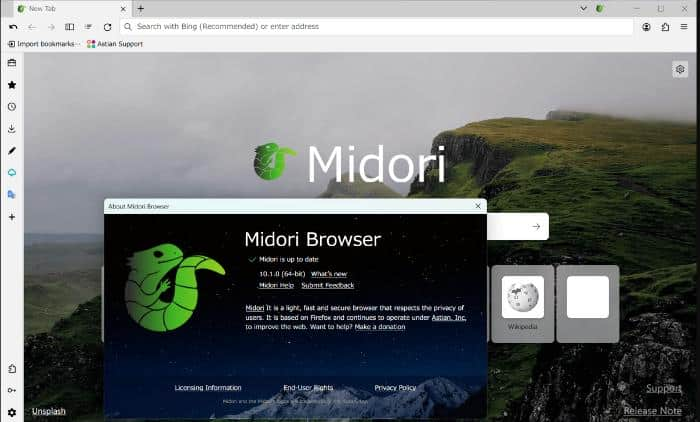
<cite index=”8-1″>Midori is designed for minimal system usage while maintaining compatibility with modern websites. It focuses on speed, privacy, and simplicity, avoiding unnecessary background processes and aggressive RAM consumption — typically using under 100–150MB with a few tabs open.</cite>
That last stat is striking. For a student doing research, checking email, or watching YouTube at 480p, Midori is one of the lightest options that still loads the modern web properly. It’s not glamorous, but it does the job without complaining.
Best for: Students, very basic browsing, devices with under 2GB of usable RAM.
Quick Comparison Table
| Browser | Best For | Approx. RAM (5 tabs) | Built-in Ad Blocking | Windows / Linux |
|---|---|---|---|---|
| Brave | Most users, everyday use | ~300–500MB | ✅ Yes | Both |
| Microsoft Edge | Windows users, multi-tab | ~400–600MB | Partial | Windows |
| Firefox | Heavy tab sessions | ~350–500MB | Partial | Both |
| Opera GX | Gamers, manual control | ~500–700MB | ✅ Yes | Windows/Mac |
| Pale Moon | Very old hardware | ~150–256MB | ✅ Yes | Windows/Linux |
| Falkon | Linux lightweight setups | ~150–300MB | Basic | Windows/Linux |
| Midori | Minimal use, students | ~100–150MB | Basic | Linux/Windows |
RAM figures are approximate and vary based on website content, extensions, and system configuration.
Tips to Squeeze More Speed Out of Any Browser
Whichever browser you choose, these habits make a real difference on low-end hardware:
- Limit open tabs. Seriously. Every extra tab costs RAM, even in the background.
- Disable or remove extensions. Each one runs as a background process.
- Block ads. Even if your browser doesn’t do it natively, install uBlock Origin. Fewer ads = less CPU work per page.
- Clear cache regularly. A bloated cache can slow down older hard drives, especially on machines without SSDs.
- Avoid auto-play video. Most browsers let you disable this in settings.
- Don’t use Chrome. Unless you have 8GB+ RAM, Chrome is not your friend on a budget machine.
The Honest Answer: What Should You Actually Install?
<cite index=”6-1″>The best lightweight browser for a low-end PC is not always the one with the smallest installer. In 2026, the better choice is usually a browser that keeps RAM use predictable, opens pages quickly, supports modern web standards, and still receives security updates.</cite>
For most people reading this — those on a basic Windows laptop with 4GB RAM, a budget Chromebook-adjacent setup, or an older desktop they’re keeping alive — Brave is the cleanest starting point. It requires no setup, blocks ads immediately, and works with Chrome extensions. If you’re on Windows and don’t want to install anything new, enable Edge’s Sleeping Tabs and Efficiency Mode right now and see if that’s enough.
READ MORE: What Is Aelftech.com A Honest Guide Before You Use It
<cite index=”7-1″>If your PC is really tight — 1GB RAM — go with Opera Mini or Firefox Focus. And remember: “lightweight” is just a starting point, not the full solution. Limit tabs, keep extensions minimal, and the combination of the right browser and good habits is what makes the real difference on older machines.</cite>
Key Takeaways
- Brave is the best starting point for most low-end PC users — no setup needed, great ad blocking, Chrome-compatible.
- Microsoft Edge has built-in tools (Sleeping Tabs, Efficiency Mode) that can cut RAM use significantly on Windows.
- Firefox is better than its reputation on older hardware, especially for users with lots of tabs open.
- Chrome is not recommended for machines with 4GB RAM or less.
- Pale Moon and Midori serve very old or resource-strapped machines where mainstream browsers won’t run well.
- The browser alone isn’t enough — limiting tabs and extensions is equally important.
FAQs
Is Google Chrome bad for a low-end PC?
Yes, Chrome is one of the heaviest browsers available. It uses significant RAM even with minimal tabs and runs multiple background processes. On a machine with 4GB or less, alternatives like Brave or Firefox will serve you better.
What is the absolute lightest browser for Windows?
For very old Windows machines (Windows 7 era), K-Meleon and Pale Moon are among the lightest available. Both are built on older Gecko-based engines and use minimal RAM, though compatibility with modern websites is limited.
Can Brave really replace Chrome on a low-end PC?
Yes, in most cases. Brave is built on the same Chromium engine as Chrome, so site compatibility and extension support are nearly identical. The difference is that Brave’s built-in ad blocking means less work for your CPU and less RAM consumed per page.
Does Microsoft Edge use less RAM than Chrome?
Generally yes, especially with Sleeping Tabs and Efficiency Mode enabled. Edge is a strong choice on Windows 10/11 machines if you prefer to stay within Microsoft’s ecosystem.
Is Firefox good for old computers?
Firefox is solid for older machines, particularly if you have many tabs open. Its memory management model handles high tab counts better than many Chromium-based browsers. Keep extensions minimal and enable Tab Sleep for the best results.
What browser should I use if I have only 2GB of RAM?
At 2GB RAM, a tuned Firefox (with Tab Sleep enabled and no heavy extensions) or Brave (with Shields on and minimal extensions) are the best practical options for full web compatibility. For truly basic browsing, Midori or Pale Moon can run lighter but will struggle with some modern sites.
For more updates visit: STORY VISTA






One Comment