
You went to call someone and they’re just… gone. No name, no number vanished from your contacts list like they never existed. It happens more than you’d think, and the panic that follows is real. But before you start scrolling through old WhatsApp chats trying to piece together someone’s number digit by digit, take a breath.
Recovering deleted contacts on Android is often much easier than people expect and in most cases, you can get them back in under two minutes. Here’s everything you need to know.
Why Deleted Contacts Are Often Recoverable

The good news is that Android doesn’t instantly erase contacts when you delete them — at least not if your phone is synced with Google. <cite index=”12-1″>When a phone number gets deleted from your Contacts app, it moves to a Trash folder, where it stays for 30 days before being permanently deleted.</cite> That’s a generous window, and most people don’t even know it exists.
The key factor is whether your contacts were saved to your Google account or only stored locally on the phone. <cite index=”7-1″>If the deleted contact wasn’t stored in your Google Account, you can’t recover it through Google’s built-in methods.</cite> This is why syncing is so important — and something we’ll come back to at the end.
Method 1: Check the Trash in Your Contacts App
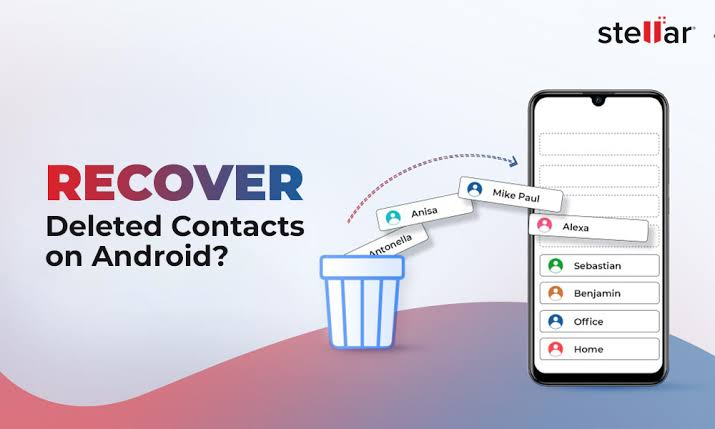
This is the fastest route for most people. If your phone is connected to Google, here’s how to do it directly from your Android device:
- Open the Contacts app on your phone
- Tap your profile picture in the top-right corner
- Go to Contacts settings
- Tap Organize Trash (or look for a “Trash” option in the menu)
- Find the contact you want and tap Recover
<cite index=”16-1″>You can recover a single contact by tapping it and selecting Recover, long-press to select multiple contacts and tap More > Recover, or select all contacts and tap More > Select all > More > Recover.
READ MORE: Best Browser for Low End PC 7 Picks That Won’t Freeze Your Machine
One thing to keep in mind: <cite index=”12-1″>the Trash folder only loads when your device is online, so make sure you have an active internet connection before trying this method.
Method 2: Recover via Google Contacts on Your Browser
If you find the mobile app a bit fiddly, the web version of Google Contacts is even easier to navigate — and you can do this from any device, including your laptop.
- Open a browser and go to contacts.google.com
- Sign in with your Google account
- In the left sidebar, scroll down and click Trash
- <cite index=”13-1″>Browse through the list and select the contacts you want to restore, then click the Restore icon at the top-right of the list.
- The contacts will sync back to your Android phone automatically — <cite index=”10-1″>it may take a few minutes to appear.
This method works across all Android phones, whether you’re on a Samsung, Pixel, OnePlus, or anything else.
Method 3: Use “Undo Changes” to Roll Back Your Entire Contact List
Deleted a bunch of contacts at once? Or made edits you now regret? Google has a powerful “Undo Changes” feature that lets you revert your entire contact list to a specific point in time.
<cite index=”13-1″>You’ll be prompted to choose a time frame — 10 minutes ago, 1 hour ago, yesterday, 1 week ago, or a custom date/time within the last 30 days. Select the appropriate time frame and click Undo — your contacts will revert to their state at that time.
Here’s how to access it:
On Android (Contacts app):
- Open the Contacts app
- Tap your profile picture → Contacts settings
- Under “Edit contacts,” tap Undo changes
- <cite index=”16-1″>Choose which Google Account you want to change, pick a time to go back to, then tap Confirm.
On browser (contacts.google.com):
- Click the gear/Settings icon in the top-right
- Select Undo changes
- Choose your time frame and confirm
One important caveat: <cite index=”11-1″>when you retrieve contacts up to a certain time, any contacts added or edits made after that time won’t appear.</cite> So if you’ve added new people to your contacts since then, those might temporarily disappear — but they’ll be easy to re-add.
Method 4: Restore from a Google One or Device Backup
If the 30-day window has passed — or your contacts weren’t syncing with Google — a device backup might save you.
<cite index=”12-1″>To restore from a Google One backup, open the Settings app, tap Google > Set up & restore. If you have multiple Google accounts, pick which account to restore your contact from.</cite>
This method restores your entire contacts database from a backup point, so it’s best used when other options have failed. Bear in mind it may overwrite any contacts you’ve added after the backup was made.
Method 5: Samsung Cloud (For Galaxy Users)
Samsung phone users have an extra safety net. <cite index=”6-1″>To recover a deleted contact on a Samsung phone, first check the Recycle Bin in the Contacts app, which stores deleted entries for 30 days. If the contact isn’t there, try restoring from a backup via Samsung Cloud by going to Settings > Accounts and backup > Samsung Cloud > Restore data.</cite>
The Samsung Contacts app also has its own Trash folder, separate from Google’s. <cite index=”15-1″>Open the Contacts app, tap the hamburger menu in the upper-left corner and open Trash, then long-tap a contact and select Restore.
Method 6: Third-Party Recovery Apps (Last Resort)
If all the built-in options have failed — say the contacts were stored locally, never synced, and the 30-day window is gone — you can try third-party data recovery software. Apps like DiskDigger, Dr.Fone, or Tenorshare UltData can scan your phone’s internal storage and attempt to retrieve permanently deleted data.
A few things to know before going this route:
- Most reputable tools require a paid licence to actually recover files (free trials usually only let you scan)
- Results are not guaranteed — once data is overwritten, it may be gone for good
- Some tools require connecting your phone to a computer and may need developer mode enabled
- Always download from official sources to avoid malware
Think of third-party tools as a last resort, not a first step.
Quick Comparison: Which Method Should You Use?
| Situation | Best Method |
|---|---|
| Deleted within the last 30 days, Google sync on | Contacts app Trash or Google Contacts web |
| Deleted multiple contacts or made bulk edits | Undo Changes feature |
| Contacts never synced with Google | Google One / device backup |
| Samsung phone user | Samsung Cloud or Samsung Contacts Trash |
| Deleted over 30 days ago, no backup | Third-party recovery software |
| SIM card contacts | Insert SIM into phone, import contacts |
Don’t Lose Them Again: Set Up Sync Now
The single biggest thing you can do to protect your contacts is make sure Google sync is turned on. <cite index=”4-1″>Most Android phones automatically sync contacts to your Google account, provided you’ve enabled contact synchronization.
To check or enable it:
- Open Settings
- Go to Accounts (or Accounts & backup)
- Tap Google → select your account
- Make sure Contacts sync is toggled on
You can also manually export your contacts as a .vcf file — a contact backup file — and save it to Google Drive or your computer. It takes about 30 seconds and gives you an instant safety net.
READ MORE: Best Browser for Low-End PC in 2026 That Actually Works
The Bottom Line
Accidentally deleting a contact feels worse than it is. <cite index=”2-1″>To recover deleted contacts on Android, you can check the Trash in your Contacts app to find and restore deleted contacts within 30 days, use the Undo Changes feature to revert your contact list to a specific state, or restore from a Google One backup for full recovery.</cite> Most people will solve the problem in the first two steps without needing to go any further.
The real takeaway here isn’t just how to recover deleted contacts on Android — it’s making sure you never have to scramble like this again. Enable Google sync, export a backup every few months, and you’ll never lose a phone number for good.
FAQs
Can I recover contacts deleted more than 30 days ago?
Google’s Trash and Undo Changes features only go back 30 days. After that, Google permanently deletes those contacts from its servers. Your best options are device backups (Google One or Samsung Cloud) or third-party recovery software, though neither guarantees results.
What if my contacts weren’t saved to Google can I still recover them?
If you didn’t store the deleted contact in your Google Account, Google’s built-in recovery tools can’t help you. In this case, check whether your SIM card holds them (import from SIM via the Contacts app), look for a manufacturer backup, or try third-party software as a last resort.
Will restoring contacts through “Undo Changes” delete newly added contacts?
Yes, potentially. When you restore contacts to a certain point in time, any contacts added or edits made after that point won’t appear. Use this feature carefully and note down any new contacts you’ve added before restoring.
How do I know where my contacts are saved Google or local?
In the Contacts app, open a contact and scroll down. It should show which account it’s saved to (e.g., Google, Samsung, Phone). Any contact sitting under “Phone” lives locally on the device and doesn’t sync automatically.
Can I recover deleted contacts from WhatsApp or another messaging app?
WhatsApp stores contact names based on what’s in your phone’s contact list, not independently. However, if you remember the phone number from a chat, you can save it again manually. Some messaging apps like Telegram may still show a contact’s name even after deletion.
Is it safe to use third-party contact recovery software?
Reputable tools from known developers (Dr.Fone, Tenorshare, DiskDigger) are generally safe, but always download from official websites. Be cautious of unknown apps that ask for excessive permissions or prompt you to root your phone.
For more updates visit: STORY VISTA